
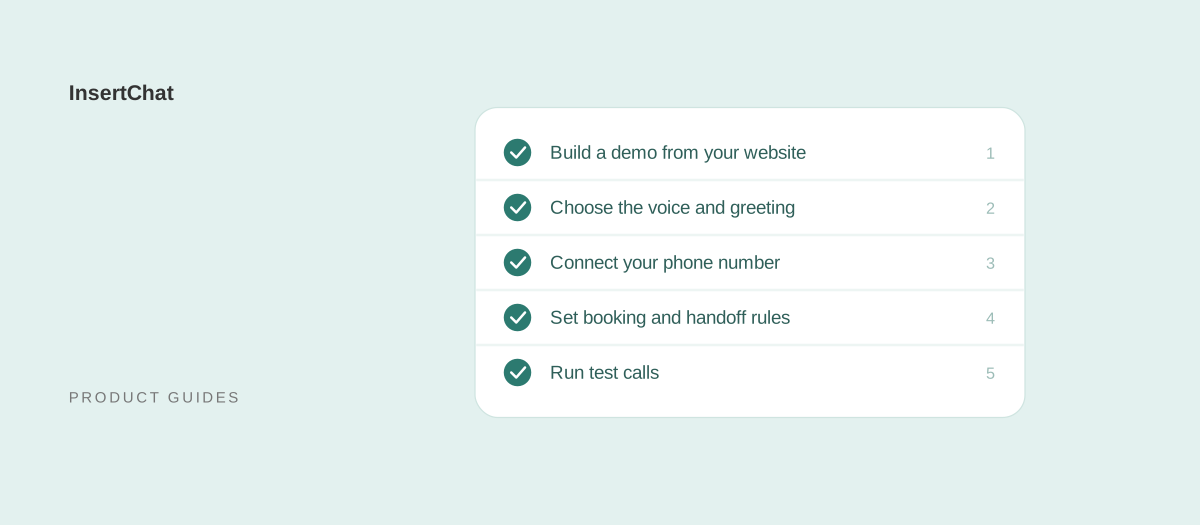
To set up an AI receptionist, give it your business information, choose how it sounds, connect the phone number customers call, set booking and handoff rules, and test it like a caller before going live. In InsertChat, you start from your website address, and the app builds a working demo from your services, hours, and FAQs before you pay.
This guide walks through the real InsertChat flow, screen by screen, with the settings that matter and the mistakes to avoid. Screen names are quoted as they appear in the app as of October 2026. If you are still deciding whether you need one, start with what an AI receptionist is.
What do you need before you start?
Gather six things before you open the app: your website address, opening hours, a list of services with any prices you publish, your most common customer questions, calendar access if you want bookings, and access to your phone provider if you plan to keep your number. With those ready, setup goes straight through.
| What to gather | Why it matters | Where it goes |
|---|---|---|
| Website address | The app reads it to find your services, hours, and FAQs | Business website, the first onboarding screen |
| Opening hours, including holidays | Shapes what callers hear and when the AI can book | Hours, during the business review |
| Services and published prices | The most common questions callers ask | Services, during the business review |
| Your top 10 to 20 questions | Fills the gaps your website doesn’t answer | FAQ, then Knowledge |
| Calendar login | Live availability and bookings | Calendar connection |
| Phone provider account or dial codes | Forwarding your existing number | Phone number setup |
Decide one more thing up front: who on your team handles calls the AI flags as needs-you, and how quickly they call back. The AI will tell callers what happens next, so the promise should be real.
Step 1: Build a demo from your website
Enter your business website on the InsertChat homepage or the first onboarding screen and choose Build my demo. No website? Choose No website? Find my business and search by business name and city or paste a Google Maps link. The app reads the source, then shows what it learned.
While it works you’ll see progress messages such as Finding your business details and Learning your website. When it finishes, you can try two demos built from your information: a Chat assistant demo and a Phone receptionist demo. Use them. Ask what services you offer and when you’re open, and listen to how the receptionist answers.
If a detail is wrong, don’t worry yet. Everything the app found is editable in the next steps, and website learning keeps running in the background if your site has many pages.
Step 2: Start the free trial
New customers can try Pro free for 7 days with 500 credits to test calls, chat, and booking. A card is required at checkout, and the Pro plan starts at $98 per month when the trial ends unless you cancel first. After checkout you’ll see Congratulations, your trial is active!
Credits cover calls and written conversations. Each call rounds up to whole minutes with a one-minute minimum, so 500 trial credits are for testing, not for running a busy line for a week. The pricing page shows plan allowances and a usage estimator for when you go live.
Step 3: Choose channels and goals
Next, the app asks Where should your assistant help? Choose Chat assistant, Phone receptionist, or Both. Then it asks What should your assistant do? and lets you pick every goal that applies. Your answers decide which setup screens follow.
The goals on that screen are:
- Answer customer questions from approved business information across the channels you chose.
- Book appointments by checking a connected calendar and confirming complete booking details. Choosing this adds the calendar step.
- Capture and qualify leads by collecting the contact details and context your team needs.
- Bring in your team with the conversation context attached when a person is needed.
- Create support tickets that turn unresolved requests into a structured follow-up.
- Share payment links through a configured payment path when the workflow requires it.
Pick only what you will use in the first month. You can turn on more later, and fewer goals make the first tests easier to judge.
Step 4: Review what the AI learned about your business
The review screen, Here’s what I’ve learned about your business, shows the company name, email, opening hours, services, and FAQ the app found. Correct each one. This is the single most important step, because callers hear exactly what you approve here.
Work through each field:
- Company name: use the name callers know, not a domain or legal entity name. The receptionist uses it to answer the phone.
- Business email: the address the AI can share with callers who want to email you.
- Hours: set the opening and closing time for each day, and add holiday closures to your knowledge later.
- Services: each service can carry an optional price and duration. List only prices you are happy to quote on every call.
- FAQ: keep the generated answers that are right, fix the rest, and add your most common questions in your customers’ words.
After setup, add more sources in Knowledge: website pages, documents, and questions and answers. Wait for each source to finish processing before testing it. The knowledge guide covers what to include and what to leave out.
Step 5: Connect your calendar
If you chose Book appointments, the app asks you to Connect your calendar for bookings. Choose the calendar you already use; during onboarding, Google Calendar and Microsoft Outlook are offered, and you authorize the connection after checkout, before live bookings are enabled.
You can also use InsertChat’s built-in calendar, which needs no outside connection, or connect Calendly or Cal.com from the app catalog. Then set your booking rules in scheduling:
- Appointment length: 15, 30, 45, 60, 90, or 120 minutes.
- Buffers: 0, 5, 10, 15, or 30 minutes before and after each appointment.
- Minimum notice: from none up to 48 hours.
- Booking window: 7, 14, 30, 60, or 90 days ahead.
- Times offered: two to five options per request.
- Availability: your business hours, or custom weekly windows.
The appointment booking guide explains each rule, confirmations, and the text or email reminders sent 72 and 24 hours before appointments.
Step 6: Choose the voice and greeting
On Choose your receptionist’s voice, preview the options and pick one; you can change it later from the full library of 10 voices. Then write the greeting under How should your receptionist answer? This is the first thing callers hear, up to 200 characters.
Good greetings do three things in one or two sentences: name the business, say the caller is speaking with an AI assistant, and invite the request. For example: “Thanks for calling Northside Plumbing. You’re speaking with our AI assistant, and I can answer questions or book a visit. How can I help?”
Later, the Caller experience settings let you change the greeting and voice and choose Test saved greeting and voice to hear them in a browser call. The guide to whether AI receptionists sound human covers voice choice and disclosure in more depth.
Step 7: Connect the number customers call
The app asks Which number do your customers call? Choose Use my existing number to keep your number with call forwarding, or Get a new InsertChat number and pick an area code. Each paid plan includes one number; additional numbers cost $10 per month.
Keeping your existing number
Forwarding works for US and Canadian numbers:
- Choose Use my existing number, enter it, and confirm the provider you pay for phone service.
- Choose when calls forward: all calls, or only unanswered and busy calls, if your provider supports it.
- Follow your provider’s steps to forward calls to the private routing number InsertChat creates. Never publish that number.
- InsertChat places a verification call. For unanswered-or-busy forwarding, let it ring without answering so your provider’s rule can forward it.
The call forwarding guides list exact steps for AT&T, Verizon, T-Mobile, RingCentral, Rogers, Bell, and TELUS. If your carrier voicemail picks up before forwarding happens, make voicemail ring longer than the forwarding timeout.
Getting a new number
Choose Get a new InsertChat number and pick an area code, or a toll-free number where available. A new number suits a second location, a campaign, or a dedicated after-hours line, and it is the option outside the US and Canada. Number porting is not offered.
Step 8: Decide which calls the AI answers
Two settings decide which calls reach the AI: caller scope and routing mode. Caller scope asks Which callers should your receptionist answer? with Everyone, Only unknown numbers, or Only saved contacts. Routing mode decides whether your team’s phone rings first.
The four routing modes are:
| Routing mode | What happens | Choose it when |
|---|---|---|
| AI always | The AI receptionist answers every call | You want every call answered immediately |
| AI after hours | Your team’s number rings during your weekly hours, in your time zone; the AI answers outside them | Your team covers the day but evenings and weekends ring out |
| AI when unanswered | Your team’s number rings for 5 to 60 seconds, then the AI answers | You want people first and the AI as backup |
| Team only | The AI doesn’t answer this number | You need a line that only people answer |
Starting with “AI after hours” is the lowest-risk launch: your daytime calls don’t change, and every after-hours call gets an answer instead of voicemail. See after-hours answering for overnight shifts and time zones.
Step 9: Set handoff rules and notifications
Handoff rules decide when the AI stops and asks your team for help. InsertChat turns on five by default: when the customer asks for a person, when an answer is uncertain, after two failed attempts, when a customer is upset, and before sensitive or restricted actions.
Then add what is specific to your business:
- Escalation topics: emergencies, custom quotes, billing disputes, complaints, and anything that needs professional judgment.
- Safety steps: what the AI should tell callers who describe an emergency, such as leaving the building and calling 911, plus any emergency number you publish.
- Who gets notified: the teammates emailed when a conversation is marked needs-you.
- Team notifications: optional alerts when a new contact is captured or an appointment is booked, sent immediately or as a daily summary.
InsertChat does not transfer live calls. When a caller needs a person, the AI collects the details, marks the conversation needs-you, emails your team, and tells the caller your team will follow up. The human handoff guide shows how to configure and test each rule.
Step 10: Test like a caller
Test before customers reach the AI. The setup includes guided checks, Test your assistant before customers use it, with four scenarios: a common question, an unknown question, a booking, and a request for a person. Run all four, then call your real number from a phone that isn’t saved as a contact.
Use this script and check each result in the shared inbox:
| Test | What to say | What good looks like |
|---|---|---|
| Common question | “What services do you offer and when are you open?” | Matches the details you approved |
| Unknown question | Ask about a service you don’t list | Says it doesn’t know and offers a useful next step |
| Booking | “Can I book something for next Tuesday morning?” | Offers open times within your rules and recaps before saving |
| Reschedule | Ask to move the appointment you just booked | Recaps the change and acts after you confirm |
| Person | “I need to speak with someone.” | Explains the follow-up and flags the conversation needs-you |
| Emergency | Describe an urgent problem | Reads your safety steps and alerts your team |
| Interruption | Start talking during the greeting | Stops the greeting and responds to you |
| Language | Ask a question in another language your customers use | Answers in that language |
Tests use your current settings and connected actions, so use test contact details and delete test appointments afterward.
Step 11: Go live and review the first two weeks
Go live on one slice of calls, read every conversation for the first week, and fix what you find. Most early problems are missing knowledge, not the AI itself. Widen the routing once answers hold up.
A simple review routine:
- Each morning, open the Today view and the needs-you queue. Return callbacks first.
- Read three to five transcripts end to end, especially calls that ended in a handoff.
- Fix gaps at the source: add a question and answer, correct a service, or adjust a booking rule.
- After a week, widen routing, for example from “AI after hours” to “AI when unanswered” during the day.
- Check usage against your plan’s credits so the bill matches expectations.
What goes wrong most often, and how do you fix it?
Most setup problems come from four places: forwarding rules, missing knowledge, booking rules that don’t match reality, and time zones. Each has a quick fix.
- The verification call fails: check that forwarding points to the private routing number, that caller ID passthrough is on where offered, and that carrier voicemail doesn’t answer first.
- The AI says it doesn’t know something it should: the source may still be processing, or the answer lives in an image or a page the app couldn’t read. Add it as a question and answer.
- Offered times look wrong: check business hours or custom windows, buffers, minimum notice, and the calendar’s time zone. The AI only offers slots the availability check returns.
- Callers keep asking for a person: read those transcripts. Often the greeting doesn’t say what the AI can do, or a common question is missing.
Start with your website address
You can be testing a receptionist built from your own information within one sitting. Start your free trial with your website address, explore the demo to see the workspace with sample data first, or compare plans on the pricing page. The AI receptionist product page lists everything the phone side can do.