
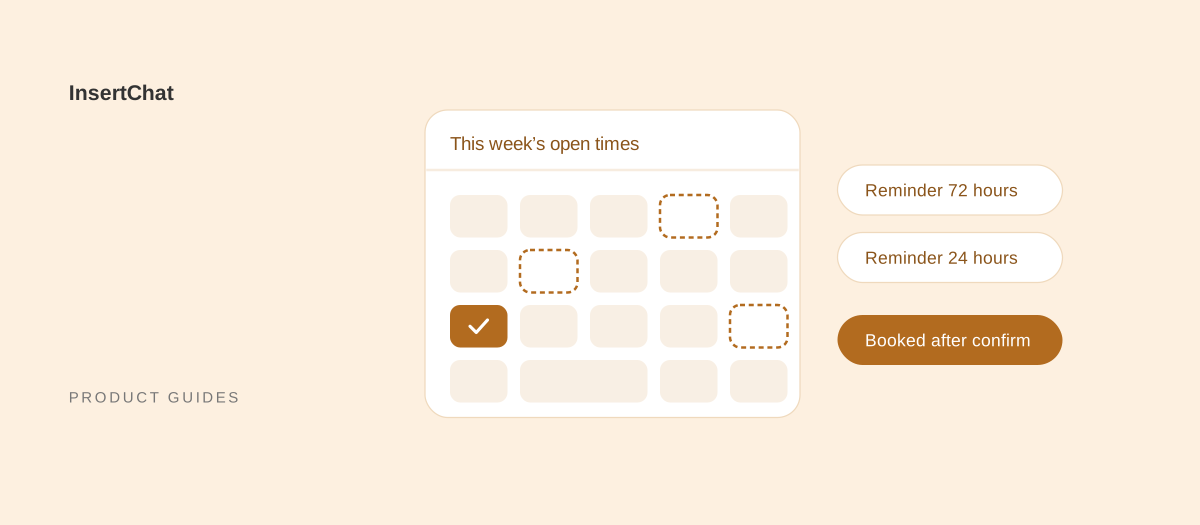
An AI receptionist books an appointment by working out that the caller wants one, collecting the details a booking needs, checking your calendar for open times within your rules, offering a few options, and creating the event once the caller confirms. Good systems then send a confirmation and reminders, and hand exceptions to your team.
This guide follows that flow step by step in InsertChat’s AI receptionist: which calendars it uses, every booking rule you control, how approvals and reminders work, and what still goes to a person. Settings and defaults are taken from the app as of October 2026.
How does an AI receptionist book an appointment, step by step?
A booking follows the same seven steps on every call, chat, or text. The AI only offers times your calendar says are open, and it creates nothing until the customer confirms the details.
- Recognize the request. The caller says they want to book, move, or cancel, in their own words.
- Collect the details. The service or purpose, the customer’s name, one contact method that works for the channel, and a location if the appointment needs one.
- Check availability. It asks your calendar for open slots that fit your appointment length, buffers, notice, booking window, and hours.
- Offer options. It offers a few open times, three by default, and lets the caller pick or ask for another day.
- Recap. It repeats the date, time, time zone, service, location, and contact method once, so the caller can correct anything.
- Book. After the caller confirms, it creates the calendar event with the customer’s details and a link to the conversation.
- Follow up. The customer can get a confirmation now and reminders 72 and 24 hours before, and your team can be notified.
If the slot is taken between offering and booking, the AI lets the caller pick another available time without asking again for details that haven’t changed.
Which calendars can it book into?
InsertChat books into five calendars: its own built-in calendar, Google Calendar, Microsoft Outlook, Calendly, and Cal.com. The built-in calendar needs no outside connection; the others connect from the app catalog, and you choose which booking actions the assistant may take in each.
| Calendar | How it connects | Good fit when |
|---|---|---|
| Built-in calendar | Nothing to connect | You don’t keep a calendar elsewhere, or want to start fast |
| Google Calendar | Connect your Google account | Your team already lives in Google Workspace |
| Outlook | Connect your Microsoft account | Your team uses Microsoft 365 |
| Calendly | Connect your Calendly account | You already publish Calendly event types |
| Cal.com | Connect your Cal.com account | You use Cal.com event types, including ones that need your confirmation |
Whichever you choose, the AI can only respect what is on the calendar. If your team keeps commitments somewhere else, add them to the connected calendar or they won’t block bookings.
What booking rules can you set?
You control appointment length, buffers, minimum notice, how far ahead customers can book, how many times the AI offers, and when you’re available. InsertChat applies these rules on the server when it checks availability, so the AI can’t offer a slot that breaks them.
| Rule | Options | Default |
|---|---|---|
| Appointment length | 15, 30, 45, 60, 90, or 120 minutes | 30 minutes |
| Buffer before | 0, 5, 10, 15, or 30 minutes | None |
| Buffer after | 0, 5, 10, 15, or 30 minutes | None |
| Minimum notice | None, 2, 4, 12, 24, or 48 hours | 4 hours |
| Booking window | 7, 14, 30, 60, or 90 days ahead | 30 days |
| Times offered | 2, 3, 4, or 5 per request | 3 |
| Availability | Your business hours, or custom weekly windows | Business hours |
Choosing the right values
- Length: match your most common appointment. The AI never asks the caller how long the appointment should be.
- Buffers: add time for travel, cleanup, or notes. A mobile service might use 30 minutes after each visit; a consultation practice might use 5.
- Minimum notice: stop same-hour bookings you can’t prepare for. Four hours suits most services; 24 or 48 hours suits work that needs parts or preparation.
- Booking window: a shorter window keeps your calendar flexible; a longer one suits annual check-ups or seasonal work.
- Times offered: three is easy to remember on a phone call. Offer more in chat, where customers can read the options.
- Availability: custom weekly windows let you keep bookable hours narrower than opening hours, for example mornings only for new-customer visits.
Where does the appointment take place?
You can let the AI ask the customer where the appointment should happen, or fix the location. The options are your business address, by phone, an online meeting link, or another location you describe. By default, the AI asks the customer and allows your business address or a phone appointment.
The calendar event can include the customer’s contact details, their note, and a link to the conversation, so whoever takes the appointment knows who is coming and why. Those fields are on by default.
What actions can the AI take, and when does it need your approval?
The AI’s booking permissions are four actions you can turn on or off: offer available times, book appointments, reschedule appointments, and cancel appointments. Rescheduling and canceling apply only to appointments the AI booked, and each change happens only after the customer confirms.
Two extra settings tighten the flow:
- Confirm appointment details before saving: the AI repeats the date, time, time zone, service, and contact details before saving. It is off by default; turn it on if misheard details would be costly.
- Send confirmation in the same conversation: after a successful change, the AI sends the final appointment details and calendar status in the same chat or text thread. Also off by default.
Actions can run automatically or wait for your team’s approval in the Today view. If you use a Cal.com event type that requires you to confirm requests, the customer hears that the request was received and will be confirmed once approved. InsertChat checks the request with Cal.com, sends the confirmation and schedules reminders once you accept it, and marks the request canceled if you decline.
What does the customer receive after booking?
Customers can receive a booking confirmation, notices when an appointment changes or is canceled, and reminders 72 hours and 24 hours before the start time. Messages go by text, email, or both, depending on the contact details the customer gave and whether your number can send texts.
How reminders behave in practice:
- Two reminders: one 72 hours before and one 24 hours before the appointment.
- Late bookings: a reminder whose send time has already passed is skipped. An appointment booked 30 hours ahead gets only the 24-hour reminder.
- Texts need an SMS-capable number: if your InsertChat number can’t send texts, reminders go by email when the customer gave one.
- Changes reset reminders: when an appointment moves, the old reminders are replaced so customers don’t get a reminder for the wrong time.
- Pending requests wait: a request awaiting your approval gets no reminders until it is confirmed.
Texts and WhatsApp messages are connected services that can carry their own charges; the channel costs summary explains them.
How is your team kept in the loop?
Your team can be notified whenever an appointment is booked, with the confirmed time, customer, and appointment details, either immediately or in a daily summary at a time you choose. The Today view lists appointments and tasks for the next seven days alongside the needs-you queue.
Each booking stays attached to the customer’s contact record and the conversation transcript in the shared inbox, so whoever takes the appointment can read exactly what the caller asked for.
What does a booking sound like on a call?
Here is an illustrative call, written to show the flow rather than quoted from a customer:
- Caller: “Hi, can I get a men’s haircut sometime Thursday afternoon?”
- AI receptionist: “Sure. I have 2:00, 3:30, or 4:15 on Thursday. Which works best?”
- Caller: “3:30.”
- AI receptionist: “Great. Can I get your name and the best number to text a confirmation to?”
- Caller: “Sam Ortiz, and this number is fine.”
- AI receptionist: “Thanks, Sam. That’s a men’s haircut on Thursday at 3:30 p.m., Eastern time, at our Main Street salon, with a text to this number. Shall I book it?”
- Caller: “Yes, please.”
- AI receptionist: “You’re booked. You’ll get a reminder before your appointment.”
The recap is the step that prevents most wrong bookings: the caller hears every detail once before anything is saved.
What still goes to a person?
Anything outside your booking rules, any appointment the AI didn’t book, and anything that needs judgment goes to your team. The conversation is marked needs-you and the teammates you chose are emailed, so a person picks up where the AI stopped.
Typical examples:
- A customer wants a time outside your bookable hours or inside the minimum notice.
- A customer wants to move an appointment your team booked by hand.
- A booking needs approval of a price, a deposit, or a special arrangement.
- A request is urgent, such as an emergency repair, and needs a person to decide.
- The customer asks for a person.
Your safety steps and handoff rules apply during booking as on any other call. The human handoff guide explains how to set them up.
Can customers book by chat and text, too?
Yes. The same booking rules apply when customers book through website chat or SMS, because the same assistant and calendar sit behind every channel. In text, the AI keeps messages short; in chat, customers can read the offered times instead of remembering them.
That consistency matters for reschedules. A customer who booked by phone can reply to a reminder text to move the appointment, and the AI moves it to another open time after they confirm.
How do you set up and test AI booking?
Connect a calendar, set your rules, choose which actions run automatically, then test a booking, a reschedule, a cancellation, and an exception before customers call. Most booking problems show up in those four tests.
- Connect your calendar in scheduling, or start with the built-in calendar.
- Set the rules: length, buffers, notice, booking window, times offered, and availability.
- Choose the location behavior and which details go on the calendar event.
- Decide approvals: which actions run automatically and which wait for review.
- Check customer messages: confirmations, change notices, and reminders are on when booking is enabled. Confirm your number can send texts.
- Test four calls: book, reschedule, cancel, and ask for a time outside your rules. Check each event in your calendar and each transcript in the inbox.
- Delete test appointments and go live, starting with after-hours calls if you want a gentle launch.
Common fixes after testing: if offered times look wrong, check the calendar’s time zone, your availability windows, and buffers; if the AI books into a busy slot, check that the busy event is on the connected calendar; if customers don’t get texts, check that your number supports SMS. The setup guide covers the rest of the launch.
Let the AI fill your calendar
Booking is where an AI receptionist pays for itself fastest, because every after-hours booking is one you would otherwise call back for. See the scheduling features, explore the demo to watch a booking land in the calendar, or start your free trial and connect your calendar in minutes. Plans and channel costs are on the pricing page.